2026 Best Optical Mouse for Office Use
Choosing the best optical mouse for office use in 2026 means looking beyond sensor specifications. Pointer accuracy matters, but so do hand comfort, click noise, connection stability, and easy access to common controls. A mouse should track reliably across your actual desk surface, not just a clean showroom pad. Small details count.
The Microsoft 2023 Work Trend Index surveyed 31,000 people across 31 countries. It found that 68% said they lacked enough uninterrupted focus time during the workday. That survey does not measure mouse comfort. It does show why avoidable desk friction deserves attention. OSHA’s computer workstation guidance also recommends keeping a pointing device within easy reach and maintaining a neutral wrist position. Fit is personal. A shape that feels fine for ten minutes may become tiring after a long afternoon.
This guide compares practical options for different office routines, including compact models for shared desks and ergonomic designs for extended use. It considers sensor performance, button feel, scrolling, battery life, and device compatibility. The right Optical Mouse Office choice depends on your hand size, grip, workspace, and tolerance for noise. There is no perfect pick. Even careful comparisons cannot reproduce every desk, posture, or workday, so treat comfort claims as a starting point—and test the fit when possible.
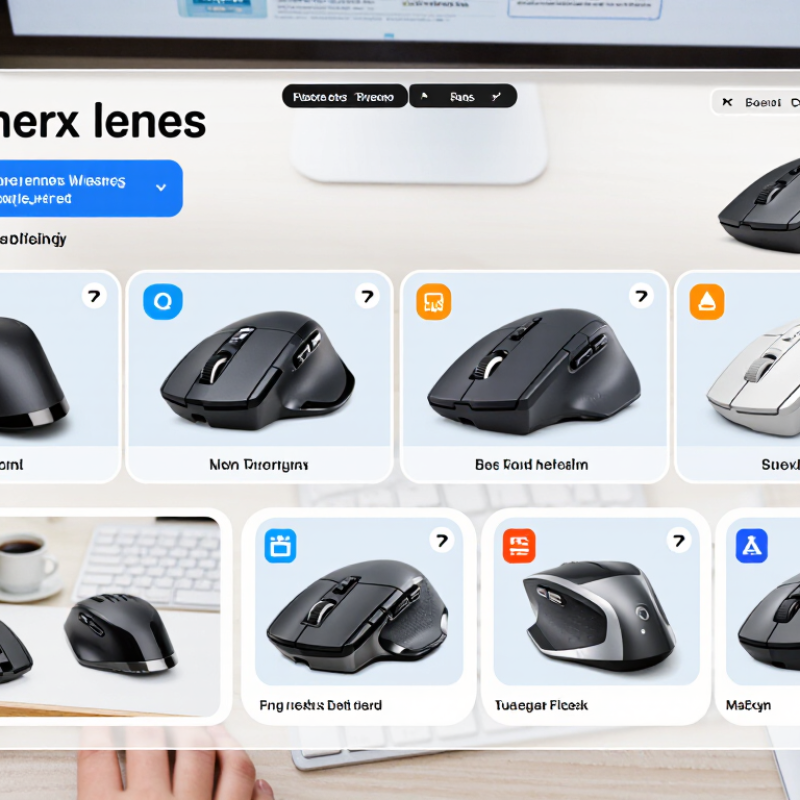
How Optical Mice Work in Office Environments
An optical mouse turns hand movement into cursor movement by reading the surface beneath it. Most models shine an LED onto the desk, then a tiny image sensor captures the texture many times each second. A processor compares those images and calculates how far the mouse has moved. The cursor follows that change. Small details matter: paper fibers, a desk’s fine grain, or a mouse pad’s woven surface can give the sensor patterns to track. Smooth glass may provide too little detail, causing skips or stalled movement. Not magic, just fast image comparison.
In an office, the surface and setup often matter more than a dramatic sensitivity rating. A matte pad can help on a glossy desktop, while a clear area around the mouse prevents accidental bumps. DPI describes how much cursor travel a given hand movement produces; higher numbers do not automatically mean more accurate tracking. For spreadsheets, a moderate setting may make small cell selections easier. For a large monitor, a faster setting can reduce repeated hand movement. It is easy to overvalue specifications and overlook comfort. If the pointer feels jumpy, check the surface and settings before blaming the sensor. Even then, personal preference complicates the answer.
2026 Best Optical Mouse for Office Use — How Optical Mice Work in Office Environments
Optical mice illuminate the surface beneath them and use an image sensor to track changes in its texture as the mouse moves. The profiles below describe practical office-use options, not specific products. Specifications vary by model.
| Office-use profile | Sensor and tracking | Typical sensitivity | Connection and power | Suitable surfaces | Why it works well in an office |
| Everyday desk work | LED illumination and an optical image sensor track surface movement. | Around 800–1,600 DPI is a practical range for common office tasks; available settings vary. | Wired USB or wireless; wireless models need a battery or rechargeable power source. | Most matte desk surfaces and standard mouse pads. | Moderate sensitivity supports routine pointing, scrolling, and document editing without requiring frequent adjustments. |
| Shared or hot-desk workstation | Optical tracking with a wired USB connection avoids a separate wireless receiver or battery. | Fixed or adjustable sensitivity; approximately 1,000 DPI is common in basic office designs. | USB cable; powered by the connected computer. | Best on clean, non-glossy surfaces or a mouse pad. | Simple to connect and does not require battery charging or pairing between users. |
| Quiet open-plan office | Optical sensor; button mechanism and scroll wheel determine much of the operating sound. | About 800–1,600 DPI is generally sufficient for office navigation. | Wired or wireless; check connection compatibility with the computer. | Matte surfaces and mouse pads typically provide reliable tracking. | A design with quieter buttons and scrolling can reduce click noise; optical tracking itself does not determine button noise. |
| Laptop and travel use | Compact optical sensor; wireless models commonly use Bluetooth or a small USB receiver. | Adjustable sensitivity is useful when switching between screen sizes or work surfaces. | Wireless operation reduces cable clutter; battery life depends on design and usage. | A mouse pad or matte tabletop is preferable; highly reflective or transparent surfaces can be unreliable. | A compact body and portable connection make it easier to carry between work locations. |
| Long work sessions | Optical tracking; shape, size, and button placement are separate ergonomic considerations. | Choose a setting that allows comfortable pointer movement without excessive wrist travel. | Wired or wireless, depending on desk setup and preference. | A consistent matte surface helps maintain predictable cursor movement. | A shape that fits the user’s hand and supports a relaxed grip may improve comfort; fit is personal and does not guarantee prevention of discomfort. |
Selection note: DPI describes pointer sensitivity, not tracking accuracy. Optical sensors may perform poorly on some transparent, glossy, or highly reflective surfaces; a suitable mouse pad can improve consistency.
Key Criteria for Evaluating Office Optical Mice in 2026
Choosing an office optical mouse in 2026 means judging more than its advertised sensitivity. Start with tracking consistency on your actual desk: laminate, a plain mouse pad, and a slightly dusty surface can behave differently. A cursor that skips during spreadsheet work quickly becomes tiring. Small detail, big impact. Check whether the sensor stays predictable during slow, precise movements, not only fast swipes.
Comfort should be tested over a real work session, ideally 30 minutes or longer. Notice wrist angle, finger reach, and whether the shell encourages a tight grip. There is no universally correct shape; hand size and desk posture matter. Buttons should register cleanly without a hard press, while the scroll wheel should move line by line through documents. Wireless latency is rarely the only concern. Stable connection, battery life, and a receiver or Bluetooth option may matter more in a crowded office.
Compare adjustable sensitivity, quiet clicks, and software requirements against daily tasks. A high DPI number alone does not prove accuracy, and quiet switches can feel less distinct. Check whether settings are stored on the mouse if you move between computers. One honest caveat: a mouse that feels excellent in a shop may disappoint after several hours. If possible, test it with your usual monitor setup. Reliable office choices stay comfortable and controllable, rather than simply offering the longest feature list.
Ergonomics, Sensor Accuracy, and Productivity Features
A good office mouse should feel natural after several hours, not merely comfortable during a quick trial. Check whether your palm rests without stretching and whether your wrist stays fairly straight. A compact mouse may suit a small desk, but it can make larger hands grip tightly. Fit is personal. Even a carefully shaped shell will not suit everyone.
Sensor accuracy matters on more than a specification sheet. A stable optical sensor should track smoothly across your usual desk surface, including small movements when selecting text or adjusting a spreadsheet. High sensitivity is not automatically better; excessive cursor speed can make precise work harder. Try changing the setting gradually, then test it with real tasks. A glossy surface may also cause inconsistent tracking, so check the mouse where you actually work.
Productivity features should reduce interruptions. A responsive scroll wheel helps when reviewing long documents, while side buttons can handle frequent actions if they are easy to reach. Wireless models avoid cable drag, but remember to check battery status and connection stability. Extra buttons are not useful just because they exist. I would weigh comfort and dependable tracking above a crowded feature list; still, that preference can change with the job. A few minutes of testing may reveal more than another specification comparison.
Office Mouse Designs, Connectivity, and Compatibility
A good office optical mouse should feel natural after several hours, not merely impressive in a quick test. A gently rounded shell supports a relaxed hand, while a low profile can suit smaller hands or compact desks. Check whether your fingers can reach the wheel and side buttons without stretching. Small details matter. A textured wheel is easier to control when switching between long documents and spreadsheets, though pronounced grooves may feel distracting to some users.
Connectivity affects a typical workday. A wired mouse avoids charging and usually responds consistently, but its cable can catch on a notebook or desk edge. A wireless model keeps the workspace tidy; check its battery type and whether it connects through a small receiver, Bluetooth, or both. Bluetooth saves a USB port, which is useful on slim laptops. Still, pairing steps can be inconvenient when moving between computers. I once focused too much on button count and not enough on connection setup.
Compatibility deserves a practical check before purchase. Confirm support for your computer’s operating system and available ports, especially if it has only USB-C connections. Basic pointer movement often needs no special software, but programmable buttons may require it. On common office surfaces, optical tracking is reliable, yet clear glass can cause trouble. A plain mouse pad helps. Test pointer speed with everyday tasks, not just a few quick clicks; the default setting may feel oddly fast at first.
How to Match an Optical Mouse to Your Work Setup
Choosing an optical mouse starts with the space around it. Measure the clear area beside your keyboard: a compact desk may suit a smaller mouse and lower pointer speed, while broad, precise movements need room. Check that the sensor tracks reliably on your actual surface; glossy glass can be troublesome for many optical sensors. DPI alone is not a quality score. Comfort, control, and a relaxed wrist matter more during a long spreadsheet session.
Fit matters. The U.S. Bureau of Labor Statistics reported that musculoskeletal disorders made up 21.5% of private-industry cases involving days away from work in 2022. That figure is not specific to mouse use, but it underscores why repetitive-work ergonomics deserve attention. OSHA’s computer-workstation guidance recommends keeping the mouse close to the keyboard and wrists in a neutral position. Try your usual grip before buying, if possible. A mouse that feels fine for five minutes may pinch after an hour; I’d treat comfort claims as a starting point, not proof.
Tips: Place the mouse beside the keyboard, not beyond a stack of papers. Keep the forearm supported and the wrist straight. For a multi-monitor setup, test pointer speed across your full screen width. No mouse fixes a cramped desk.
2026 Best Optical Mouse for Office Use
How to Match an Optical Mouse to Your Work Setup
Polling interval is calculated as 1,000 milliseconds divided by the report rate: 125 Hz is 8 ms, 500 Hz is 2 ms, and 1,000 Hz is 1 ms. For typical office work, a standard report rate is generally sufficient; prioritize comfortable shape, reliable tracking on your desk surface, and connectivity that suits your setup. Actual response time can also depend on the computer and connection.